Automation Power BI Bot
A mini-project at my company to automate the capture of the Power BI dashboard and send it to Telegram & Lark group chats
Highlights
- Developed an automation bot to capture Power BI dashboard snapshots as images
- Integrated the bot with Telegram and Lark to deliver reports to group chats on a weekly schedule (every Monday)
Context
To track and reward sales performance, my team built a Power BI dashboard showing detailed results for each staff member and the overall company.
However:
- Not all staff have access to Power BI.
- Managers prefer to view results in group chats instead of opening dashboards.
Request
We designed an automation flow that captures the dashboard and sends it weekly to Telegram or Lark group chats.
I. Telegram Bot:
Set up
To get BOT_TOKEN, follow these steps:
- Search for "BotFather" in Telegram, start with /start
- Create a new bot with /newbot and choose a name
- Copy the generated token
Get CHAT_ID:
- Create a Telegram group chat and add your bot. Grant your bot admin role that can have access to messages.
- You send a message to your group.
- To get CHAT_ID, call API https://api.telegram.org/bot<BOT_TOKEN>/getUpdates
Set up GMAIL IMAP:
- Go to settings, enable IMAP
- Access to https://myaccount.google.com/apppasswords, create app and get APP_PASSWORD
Set up Dashboard:
- Because the Power BI Report can only export into PDF, PowerPoint, or Excel. So, to capture as an image, need to set it up as a Dashboard type.
- Summary some information you need to show in one chart, pin this visual as a dashboard.
- Subscribe to it to set an automated email that exports as a PNG image
Set up automated email sending:
- Click on the "Subscribe to dashboard" button and set up a schedule
- Power BI mail (no-reply-powerbi@microsoft.com) will send you the capture as set up
2. Test code in Colab
Source code: https://colab.research.google.com/drive/1_Jz4j8i_zHhFN-6oTWy-95WXIp5X41Ge?usp=sharing
Output: If you run successfully, the result is as below and your Telegram group will receive the image
3. Set up automation flow
You can use any tools to set up automation. In my company, I will use Windmill to schedule the job: when Power BI sends me an email that contains an image (.PNG), I catch and run code to send to a Telegram group chat.
Source code: https://drive.google.com/file/d/1SWMQsNeewHF5GksNffgCHLsaoHu51ulb/view?usp=sharing
Set up in Windmill:
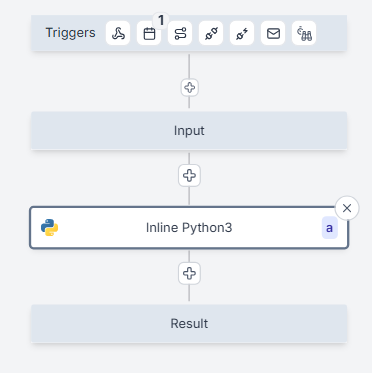
- Create flow and variables in Input to require the user to enter if they want to use your version, or apply it to other dashboards.
- At the next steps, you choose the Python script and import the code
- Schedule job and fill in some variables (only the owner can see the password)
II. Lark Bot:
Set up
Similar to the setup way of Telegram, the idea will keep IMAP and Subscription mail.
However, to send an image from Lark Bot, there is only one way - call the API from the Lark app.
Set up Lark App:
- Go to https://open.larksuite.com/app and click "Create Custom App"
- When you created Lark App, move to "Credentials & Basic Info", you can see App ID and App Secret
- Move to "Permissions & Scopes", add for your bot some scopes as below
- After adding, ensure that your app is released
Get CHAT_ID:
- Create a group in Lark and add your bot (Settings -> Bots -> Add Bot)
- After adding your bot, call the API to get CHAT_ID
- First, get Tenant Token by using the API https://open.feishu.cn/open-apis/auth/v3/tenant_access_token/internal
- Next, using API https://open.feishu.cn/open-apis/im/v1/chats to list down a group chat that the Bot is added to send to
2. Test code in Colab
Source code: https://colab.research.google.com/drive/1i55FRYn2fc-pniUj59l5Y8VDQ1hFsFd6?usp=sharing
Output: If you run successfully, the result is as follows, and your Lark group will receive the image
3. Set up automation flow
Source code: https://drive.google.com/file/d/1Q36sxKv0AIACR_LgFiAhzCdgBkYmy5Wj/view?usp=drive_link